> For the complete documentation index, see [llms.txt](https://docs.trycoinpilot.com/llms.txt). Markdown versions of documentation pages are available by appending `.md` to page URLs; this page is available as [Markdown](https://docs.trycoinpilot.com/resources/troubleshooting.md).
# Troubleshooting
Find solutions to common problems you may encounter on Coinpilot.
### **How do I transfer unused assets from my sub-wallets?**
Sometimes, if a copy trade fails, the allocated funds may stay in your sub-wallet instead of being returned automatically to your primary wallet. While our system usually rolls these funds back, you can also do it manually at any time.
{% stepper %}
{% step %}
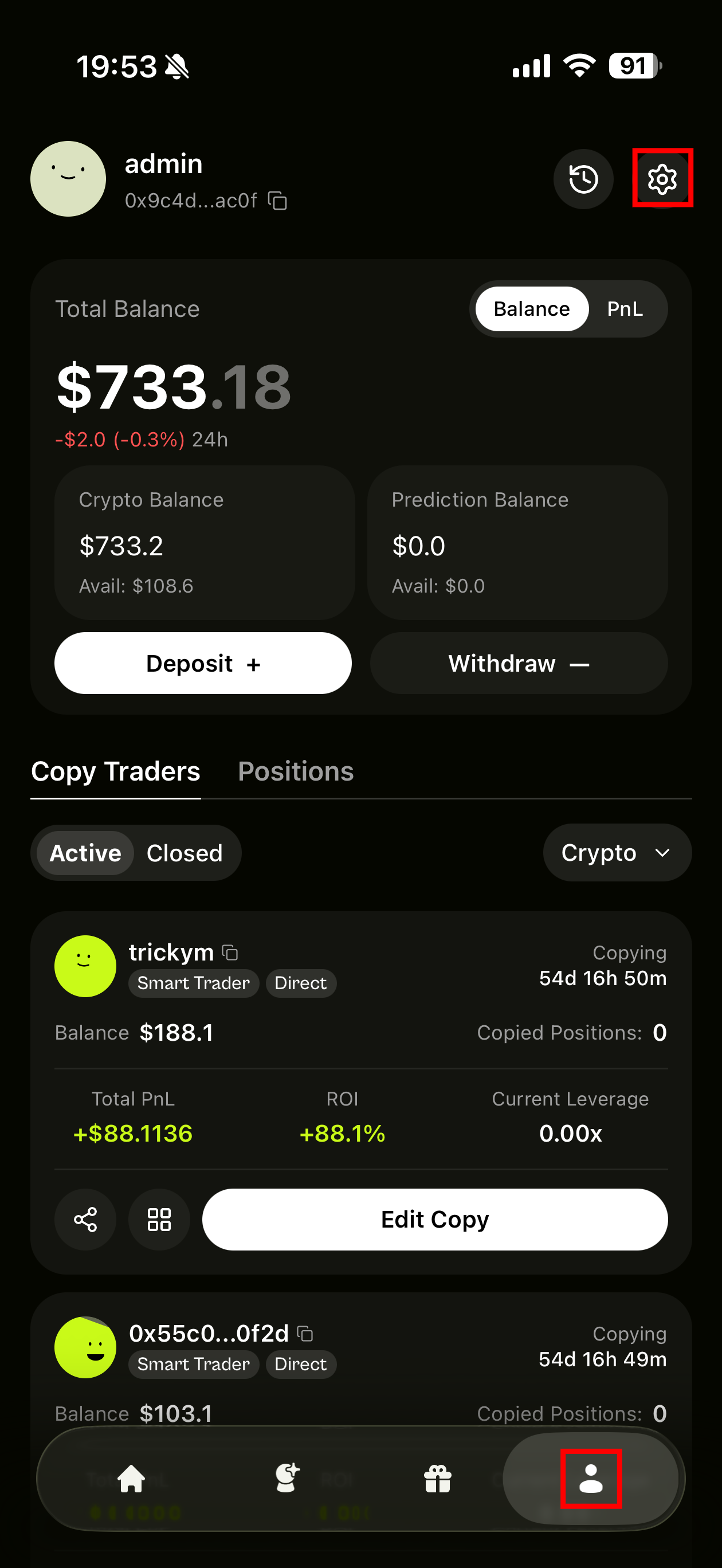
Open the 👤 Profile page in the app. And tap on ⚙️ on the top right.
{% endstep %}
{% step %}
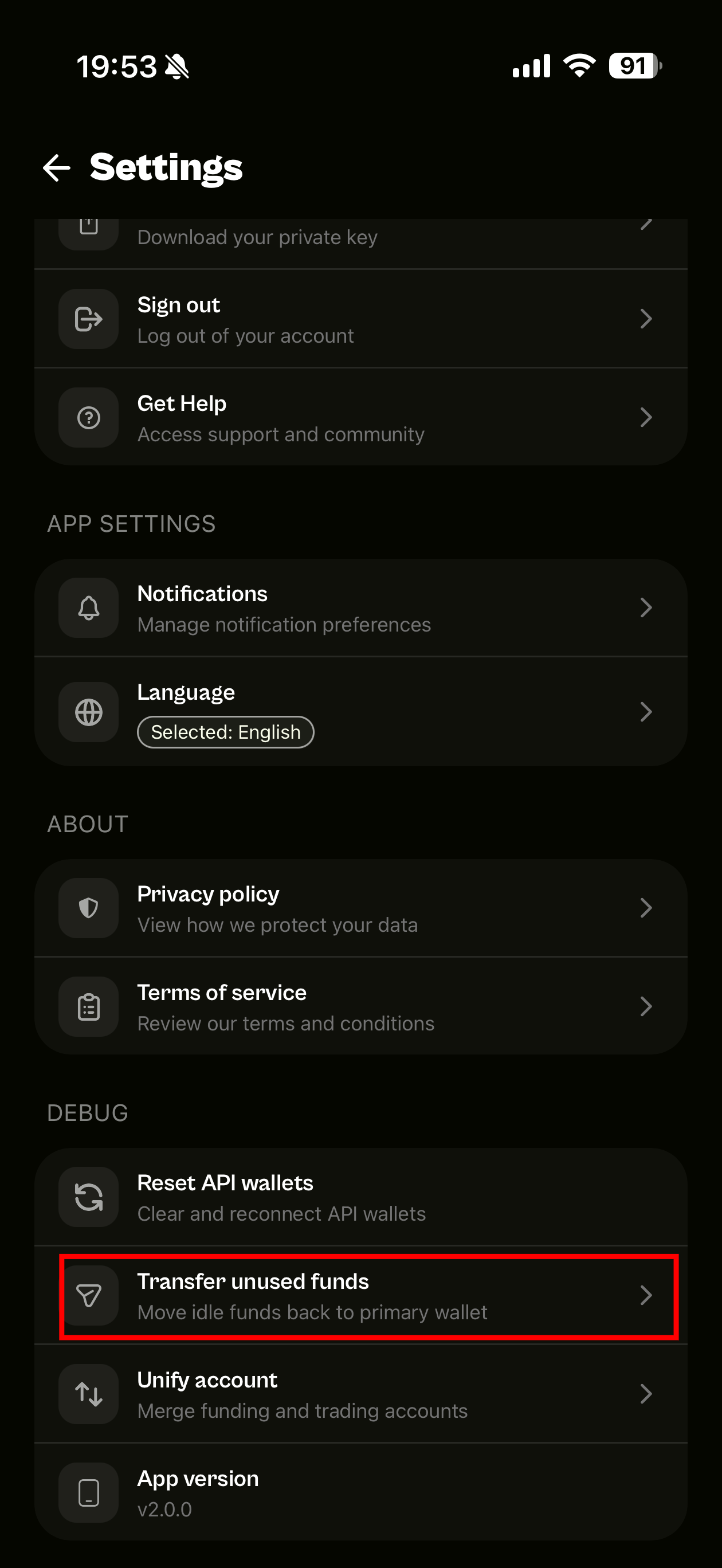
Select **`Transfer Unused Funds`**.
{% endstep %}
{% step %}
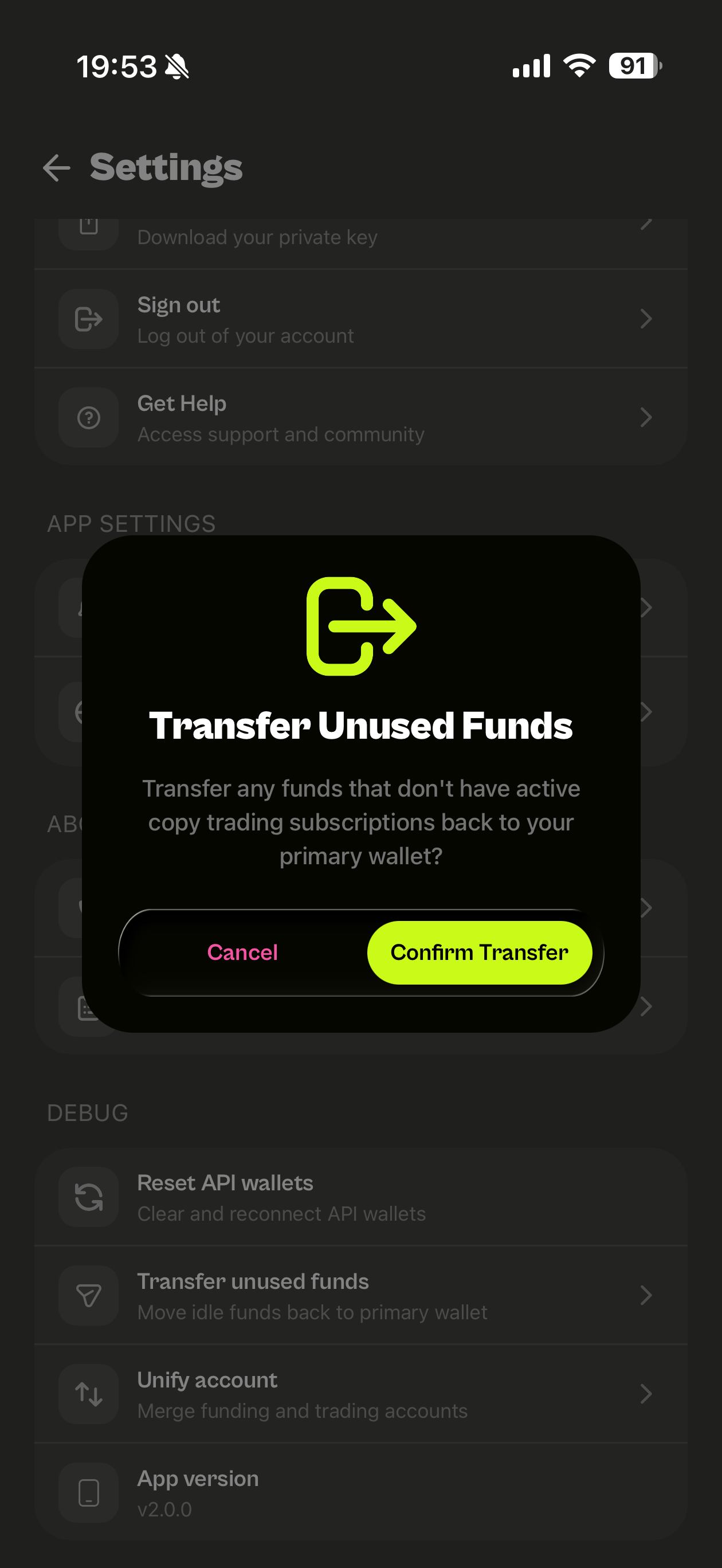
Tap **`Confirm Transfer`**.
{% endstep %}
{% endstepper %}
### **Why am I asked to move my funds after the 2.0 update?**
If you joined Coinpilot before the **2.0 update**, your account may still have funds stored under the previous account structure.
In earlier versions, Coinpilot used two accounts:
• **Funding Account** – for deposits\
• **Trading Account** – for copy trading
In Coinpilot 2.0, these accounts are merged into a **Unified Account** to make your experience faster and simpler.
Because of this change, funds from the previous Funding Account will nee you to transfer to your Unified Account.
**How to move funds to the Unified Account**
1. Open the **`👤 Profile`** page → **`Settings ⚙️`** → **`Unify Account`**
2. Tap **`Move Funds Now`**
3. Review the details and tap **`Confirm Transfer`** to finish the transfer.
**What happens after the transfer?**
After moving the funds:
• Your funds in old Funding account (USDC on Arbitrum) will appear under **Crypto Balance**\
• You can use the funds for **Crypto Perpetual copy trading**\
• Your account will follow the new **Unified Account structure**
Your funds remain fully self-custodial throughout this process.
### **Why can’t I see my deposit in Funding History?**
If you deposit USDC (Arbitrum) directly to your Coinpilot Primary Wallet (the one you see on top of the Profile page), you may notice that your account value increases, but the deposit does not appear in Funding History.
This usually happens because the funds are temporarily recognized as Hyperliquid Spot balance instead of Perpetual balance.
Since Hyperliquid is now using Unify account for spot and perp, Coinpilot is building on Hyperliquid for Crypto Perpetual copy trading, the funds need to be moved to the Perpetual account before they appear correctly in your Crypto Balance and Funding History.
**How to fix this**
You can resolve this in a few seconds.
1. Go to the **👤 Profile** page
2. Open **Settings ⚙️**
3. Tap **Fix Deposit Balance**
4. Tap **Fix** to confirm
Coinpilot will automatically move the **USDC Spot balance** into your Crypto Balance.
**What happens after fixing it?**
After the fix:
• Your funds will appear under **Crypto Balance → Available**\
• The deposit record will show correctly in **Funding History**\
• The funds can be used for **Crypto Perpetual copy trading**
No funds are lost during this process, they are simply moved to the correct balance type.
## Coinpilot Lite
### Why can't I withdraw my full Lite balance?
Only **Cash** can be withdrawn. Funds reserved under **Allocated** must first be released through **Edit copy → Withdraw**. Funds already used in **Positions** must be sold before they become available.
### Why was a copied trade skipped?
A trade is skipped when the trader's remaining allocation is below your amount per coin. Skipped trades do not partially fill. Add allocation through **Top up** or **Edit copy**.
### Why did a copied trade fail?
A failed trade did not execute, including when it exceeded Lite's execution limit. Failed trades are not retried automatically, and the allocation is not consumed.
### I deposited the wrong asset or used the wrong network
Lite supports USDC on Solana, Base, BNB Chain, and Ethereum, and USDG on Robinhood Chain. Deposits using another asset or network cannot be recovered in the app. Contact Coinpilot support for manual assistance.
### Why don't I see my Pro funds in Lite?
Lite and Pro balances, wallets, and positions are separate. Switching modes does not transfer funds between them.